If you’ve asked whether WhatsApp works with HubSpot Starter, you may have been told you need Professional. That’s only true of one route. You can connect WhatsApp to HubSpot on every plan, Free included. What changes from plan to plan is which route you can use and how much of it you can automate.
This guide covers all three routes: HubSpot’s own WhatsApp channel, WhatsApp apps from the HubSpot Marketplace and Flowella. You’ll get the plan-by-plan answer first, then what Meta needs from you before you start, step-by-step setup for each route and a short guide to choosing. We checked every fact against HubSpot’s, Meta’s and each vendor’s own pages on 25 October 2026.
A note on bias: Flowella is our own product, from the team at Discover Digital, a HubSpot Platinum Partner. We’ve aimed to be fair to every option and we say where the others do more.
Can you connect WhatsApp to HubSpot on your plan?
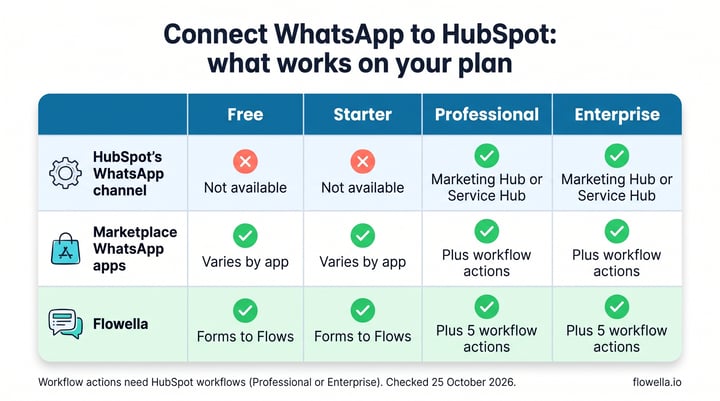
Short answer: yes, on every HubSpot plan. HubSpot’s own WhatsApp channel needs Marketing Hub or Service Hub Professional or Enterprise, and HubSpot’s catalogue lists no WhatsApp integration on Starter, so Free and Starter can’t use it[1][2]. On Free and Starter you can still connect WhatsApp through a Marketplace app or Flowella. On every route covered here, sending WhatsApp messages from HubSpot workflows needs Professional or Enterprise, because that’s where HubSpot workflows start.
| HubSpot plan | HubSpot’s own WhatsApp channel | Marketplace WhatsApp apps | Flowella |
|---|---|---|---|
| Free (free tools, up to 2 users[3]) | Not available | Depends on the app. TimelinesAI and HelloSend both list their features as available with HubSpot Free[4][5] | Yes: Forms to Flows, WhatsApp activity on the contact timeline, the Flowella inbox, bulk send, and templates and Flows sent from Flowella[6] |
| Starter (from $20 a month per Core Seat[2]) | Not available | As Free | Yes, as Free. HubSpot’s form automations can also run on WhatsApp Flow submissions[7] |
| Professional | Yes, with Marketing Hub or Service Hub (not Sales Hub alone). 1,000 template messages a month included; 1,000 more for $70 a month[8] | As Free, plus the apps’ workflow actions | Yes, plus five workflow actions and four triggers[9]. The Flowella channel in HubSpot’s inbox needs Sales Hub or Service Hub[10] |
| Enterprise | Yes, as Professional | As Professional | Yes, as Professional |
Prices in this guide are in US dollars, before tax, as published on 25 October 2026. If you’re weighing an upgrade for HubSpot’s own channel, Marketing Hub Professional starts at $800 a month billed annually ($890 paying monthly) with 3 Core Seats, plus a required one-time $3,000 Professional Onboarding[3]. Service Hub Professional starts at $90 a seat a month billed annually ($100 monthly), plus a one-time $1,500 onboarding[11]. HubSpot prices Core Seats at the highest level of subscription you hold, so upgrading one hub can raise the price of every Core Seat. Check your own quote[12].
What you need before you connect WhatsApp to HubSpot
Apart from apps that link a phone by QR code (covered below), every route connects through Meta’s WhatsApp Business Platform, and Meta asks for the same things whichever tool you pick. Most of the waiting happens on Meta’s side, so start here[13].
A WhatsApp Business Account
You need admin access to your company’s Meta business portfolio (Business Manager). During setup you choose or create a WhatsApp Business Account, which holds your phone numbers and message templates. HubSpot also asks for your legal company name, WhatsApp display name, website and business email. Each WhatsApp Business Account can hold up to 25 phone numbers in HubSpot, and you can’t connect a personal WhatsApp account to HubSpot’s own channel[1].
Meta business verification
Verification is Meta’s check that your business is real and yours. It affects two things:
- How many people you can message. Meta’s documentation says a new business portfolio can deliver messages to 250 unique people outside a customer service window in any rolling 24 hours, and verifying your business is one way to raise that to 2,000[14]. HubSpot’s knowledge base still quotes a lower figure: more than 50 business-initiated conversations a day needs a verified business[1]. Either way, verify before you plan a campaign.
- WhatsApp Flows. Flowella can’t publish a WhatsApp Flow until Meta shows your business as verified[15].
You can connect WhatsApp while Meta reviews your business. Our guide to getting a verified WhatsApp Business Account covers what Meta asks for.
A number that isn’t connected anywhere else
HubSpot says the number must not be connected to another WhatsApp account, the WhatsApp Business app or another WhatsApp integration. It must also be able to receive voice calls and can’t sit behind an automated phone menu[1]. If the number is on another provider, disconnect or migrate it first. If it’s on the WhatsApp Business app, coexistence lets you keep it there. See whether you can use your existing business number.
Coexistence, if you want to keep the WhatsApp Business app
Coexistence lets one number work in the WhatsApp Business app and on the WhatsApp Business Platform at the same time. Staff keep chatting one to one in the app, while your HubSpot tool sends messages at volume from the same number[16]. HubSpot’s channel and Flowella both support it, but they handle history differently:
- HubSpot imports the last 180 days of conversations and syncs messages both ways. Only template messages sent from HubSpot count towards its monthly limit[17].
- Flowella doesn’t import past chats, and replies your staff send from the app don’t appear in Flowella or HubSpot, so agree which tool your team replies from[18].
Without coexistence, HubSpot notes that once a number is connected, its messages no longer appear in the WhatsApp mobile or web app[1].
Clean phone numbers and a plan for Meta’s fees
Store contacts’ mobile numbers in international format, such as +447700900123. HubSpot matches an incoming WhatsApp message to a contact by the Phone number or Mobile phone number property[1], and Flowella’s workflow actions read the number from a contact property (see phone number format).
Meta charges per delivered message, by category and country. From 1 October 2026 it also charges for replies inside the 24-hour customer service window once a number has used its 1,000 free service messages for the month[19]. How those fees reach you depends on the route: HubSpot’s own channel includes 1,000 template messages a month and doesn’t charge for free entry point conversations[1], while Flowella’s customers pay Meta directly through a payment method on their WhatsApp Business Account[13]. HubSpot’s pages don’t say how Meta’s fees are handled on its own channel.
Route 1: HubSpot’s own WhatsApp integration
The built-in HubSpot WhatsApp integration connects a WhatsApp Business Account as a channel in the conversations inbox or help desk. It comes with Marketing Hub or Service Hub Professional and Enterprise[1].
What you get
- A shared WhatsApp inbox: chats land in the conversations inbox or help desk. Replies can carry images, attachments, documents, meeting links and quotes, and a conversation can switch to email or a call[1].
- Contact matching: conversations log on the contact’s timeline when the phone number matches.
- Templates and workflows: you create templates in Meta’s WhatsApp Manager and sync them, then send from a record, the inbox, help desk or a contact-based workflow with the Send WhatsApp Message action, to opted-in contacts only[20].
- Consent tracking: START and STOP keywords update two subscription types, WhatsApp Marketing and WhatsApp Transactional, with a history of each change[21].
- A shared allowance: 1,000 template messages a month across all your connected WhatsApp Business Accounts. The WhatsApp Message Limit Increase adds 1,000 more for $70 a month[8].
The main gap: HubSpot doesn’t support syncing templates with Flow buttons, so its own channel can’t send WhatsApp Flows[20].
How to set it up
Summarised from HubSpot’s knowledge base[1]:
- Check access. You need Marketing Hub or Service Hub Professional or Enterprise, Super Admin rights in HubSpot[17] and admin rights in your Meta business portfolio.
- Open WhatsApp settings. In HubSpot, click the settings icon, then WhatsApp in the left sidebar.
- Start the connection. Click Connect a WhatsApp phone number, then Continue with WhatsApp.
- Choose your Meta assets. In Meta’s window, pick your business portfolio and WhatsApp Business Account (or create one), then add a new number or select an existing one.
- Approve and finish. Review the permissions, click Continue, then Finish.
- Connect it to an inbox. Click Connect to Inbox, choose the inbox and click Save. HubSpot recommends creating a WhatsApp view so these threads are easy to find.
- Add templates. Create them in WhatsApp Manager, wait for Meta’s approval, then send them from records, the inbox or a workflow.
Using coexistence? Register the number in the WhatsApp Business app first. In HubSpot’s WhatsApp settings, click Connect WhatsApp number, enter the number and choose your business portfolio. Then scan the QR code HubSpot shows with the WhatsApp Business app and confirm[17].
Route 2: WhatsApp apps from the HubSpot Marketplace
The HubSpot Marketplace has many WhatsApp apps, and some work on every HubSpot plan. They connect WhatsApp in one of two ways, and several offer both. Knowing which connection you’re setting up matters more than the brand.
Apps that link your phone’s WhatsApp by QR code
These work like WhatsApp Web. You open Linked devices on your phone, scan a QR code, and the app mirrors that number’s chats into HubSpot. It takes minutes, works with a personal number or a WhatsApp Business app number, and needs no Meta verification. There are no Meta per-message fees on a QR connection, and it can sync group chats[22].
The trade-off: a QR-linked number can’t send Meta-approved templates[22] or launch WhatsApp Flows[23]. It also isn’t the route Meta built for volume. TimelinesAI, which offers QR connections, says so itself: “If you message at volume, the official WhatsApp Business API is the path Meta built for it”[22]. Its Marketplace listing adds that “you should use the WhatsApp Business app or WABA in a live environment”[4]. Our comparison of personal WhatsApp, the Business app and the API explains the difference.
Apps on the WhatsApp Business Platform
These connect through Meta’s official sign-up, as HubSpot’s own channel does, so the prerequisites above apply. In return you get approved templates, messaging at volume within Meta’s limits and, depending on the app, WhatsApp Flows. Meta’s fees are separate from the app’s subscription: TimelinesAI, for example, says Meta bills its per-message template fees directly[22].
Two apps that offer both kinds of connection, as their own pages described them on 25 October 2026:
- TimelinesAI runs QR, Business Platform and coexistence numbers in one workspace. Its listing says it works with every HubSpot tier, Free CRM included, and that its Send WhatsApp message workflow action needs HubSpot Professional or Enterprise[4].
- HelloSend adds SMS alongside personal WhatsApp (by QR code) and Meta’s WhatsApp Business Platform, with a shared inbox inside HubSpot[5]. Its help centre says automation needs HubSpot workflows, typically Professional or Enterprise[24].
How to set up a Marketplace app
- Read the listing’s requirements: compatible HubSpot plans, the app’s own subscription and which features need workflows.
- Install from the listing: choose your HubSpot account and approve the permissions the app asks for.
- Connect WhatsApp: for a QR connection, open WhatsApp on your phone, go to Linked devices and scan the code. For the Business Platform, sign in with the Facebook account that administers your business portfolio and follow Meta’s sign-up.
- Check phone numbers: make sure contacts’ numbers are in international format so chats land on the right record.
- Test: send a message to your own phone and check the activity on the contact’s timeline.
Route 3: Flowella
Flowella connects your WhatsApp Business Account to HubSpot through the WhatsApp Business Platform and works on every HubSpot plan, Free and Starter included[6]. It’s built around one idea: turn the HubSpot forms you already have into WhatsApp Flows, so people fill them in inside the chat. Each completed Flow comes back as a native submission of that same form, with the answers on contact properties[25].
What works on which plan
- Every plan: Forms to Flows; WhatsApp activity on the contact timeline (Form Completed, Message Sent, Message Read, Text Reply)[26]; the Flowella inbox; bulk send of one approved template to up to 50,000 contacts from a CSV or Excel file[27]; and templates and Flows sent from Flowella.
- Professional or Enterprise (HubSpot workflows): five workflow actions (Send WhatsApp Template, Send WhatsApp Message, Send WhatsApp Reply, AI Document Reader and Generate Document) and four triggers (Form Completed, Text Reply, Message Sent and Message Read)[9].
- Sales Hub or Service Hub Professional or Enterprise: the Flowella channel in HubSpot’s conversations inbox. HubSpot Credits may also be required, and replies sent from HubSpot go out as text[10].
Because each Flow arrives as a native submission of your HubSpot form, the form automations HubSpot includes on every plan can run on WhatsApp submissions too. On Marketing Hub Starter, that’s one simple workflow per form with up to 10 actions[7].
How to set it up
Flowella’s setup guide estimates about 76 minutes of hands-on time in all[13]. Its first-Flow tutorial takes about 50 minutes, plus up to 24 hours while Meta reviews your template[25].
- Check what you need: the Meta items above, a default payment method on your WhatsApp Business Account, Super Admin access in HubSpot, a HubSpot marketing form with an email field, and your own phone on a different number for testing[13].
- Start your free trial and name your organisation.
- Connect WhatsApp: go to Settings → WhatsApp (Meta) and select Connect WhatsApp. In Meta’s sign-up, choose or create your WhatsApp Business Account, then verify the number.
- Connect HubSpot: go to Settings → HubSpot, select Connect HubSpot, choose your HubSpot account and select Connect app. It takes about five minutes, and the Capabilities card then shows what your HubSpot plan unlocked[28].
- Build the Flow: open Flows, find your HubSpot form and select Create WA Flow.
- Add the Flow to a template and submit it to Meta, which says a decision can take up to 24 hours.
- Test it on your phone: send a test, complete the Flow, then check for the new submission on the HubSpot form and a Form Completed event on the contact’s timeline.
- Send it from a workflow on Professional or Enterprise: add Send WhatsApp Template to a contact-based workflow, followed by a Delay until event step on Form Completed. On Free or Starter, send from Flowella instead, as a test or a bulk send[25].
Where Flowella does less
- WhatsApp only: there’s no SMS or email channel, where HelloSend, for example, adds SMS.
- Text-only replies from HubSpot’s inbox: the Flowella channel sends text, where HubSpot’s own channel can send images, documents and quotes[10].
- No chat history on coexistence: Flowella doesn’t import past chats, where HubSpot imports 180 days[18].
- Opt-outs, not opt-ins: Flowella records STOP replies and blocks sends to those numbers, but it doesn’t record opt-ins or write opt-outs to HubSpot, so you keep your own record of consent[29].
Cost: Starter is $79 a month with 1,000 billable messages, then $0.05 each. Pro is $199 a month with 2,500, then $0.04 each, plus priority support. Enterprise is priced with you. Every plan has unlimited WhatsApp Flows, and the 14-day free trial includes up to 5,000 messages with no card. Meta bills its fees directly to your WhatsApp Business Account, and Flowella never marks them up[30].
“Exceptional engagement platform that transformed our student conversion with 160% increase in same-day applications and 90% WhatsApp response rates.”
Peter Hudson, Director of Admissions, Brand & Customer Innovation, Oaklands College. Read the Oaklands College story
How to choose the best way to connect WhatsApp to HubSpot
- You have Marketing Hub or Service Hub Professional and want a shared WhatsApp inbox: start with HubSpot’s own channel. It’s already in your subscription and its replies carry rich media. Watch the 1,000 template message allowance if you plan campaigns.
- You’re on Free or Starter: HubSpot’s channel isn’t available, so choose between a Marketplace app and Flowella. Neither needs a HubSpot upgrade to get started.
- Your team sells from personal phones, or needs group chats or SMS: a Marketplace app such as TimelinesAI or HelloSend does things Flowella doesn’t. Keep QR connections for one-to-one conversations and use an official connection for anything at volume.
- You want structured answers, not free-text chats: Flowella turns your HubSpot forms into WhatsApp Flows on any plan, and the answers arrive as form submissions your reports and workflows already understand. HubSpot’s own channel and QR-linked apps can’t send Flows.
For side-by-side detail on other WhatsApp tools for HubSpot, see our comparison pages.
Frequently asked questions
Can I use WhatsApp with HubSpot Starter?
Yes, but not through HubSpot’s own WhatsApp channel, which needs Marketing Hub or Service Hub Professional or Enterprise[2]. On Starter you can connect WhatsApp with a Marketplace app or Flowella. What Starter can’t do on any of these routes is send WhatsApp messages from HubSpot workflows, because workflows come with Professional and Enterprise.
Is HubSpot’s WhatsApp integration free?
It isn’t part of HubSpot’s free tools. It’s included with Marketing Hub or Service Hub Professional and Enterprise, with 1,000 template messages a month shared across your connected accounts. More costs $70 a month for each extra 1,000, and HubSpot doesn’t charge for free entry point conversations[1][8].
Can I keep using the WhatsApp Business app after connecting?
Yes, with coexistence, which HubSpot’s channel and Flowella both support. Without it, a number connected to HubSpot’s channel stops showing messages in the WhatsApp app[17][18].
Can I connect a personal WhatsApp number to HubSpot?
Not to HubSpot’s own channel, which needs a WhatsApp Business account[1]. Some Marketplace apps link a personal number by QR code. They’re quick to set up, but they can’t send approved templates, and TimelinesAI recommends the WhatsApp Business app or the official platform for live use[4].
Can HubSpot send WhatsApp Flows?
Not with its own channel: HubSpot doesn’t support syncing templates with Flow buttons[20]. Flowella sends Flows from HubSpot workflows on Professional or Enterprise, and from Flowella itself on any plan, with each completed Flow saved as a submission of your HubSpot form[25].
Do I need Meta business verification?
You can connect without it, but until you verify, Meta limits how many people you can message outside a customer service window. Meta’s documentation puts a new business portfolio at 250 people in any rolling 24 hours[14], and HubSpot’s knowledge base says 50 business-initiated conversations a day[1]. Flowella also can’t publish WhatsApp Flows until you’re verified[15].
Your next step
Every HubSpot plan can work with WhatsApp. With Marketing Hub or Service Hub Professional or Enterprise, HubSpot’s own channel gives you a shared inbox and 1,000 template messages a month. On any plan, a Marketplace app can bring WhatsApp chats into HubSpot, and Flowella can turn your HubSpot forms into WhatsApp Flows that land as native submissions. Whichever you choose, start Meta’s business verification first, because it takes the longest.
If WhatsApp Flows fit what you need, start a 14-day Flowella trial with no card, book a demo, or see how Flowella works with HubSpot.
References
- HubSpot Knowledge Base: Connect a WhatsApp channel to the conversations inbox (last updated 20 October 2026)
- HubSpot Products & Services Catalog: product features, Marketing Hub and Service Hub tables (checked 25 October 2026)
- HubSpot pricing: Marketing Hub (checked 25 October 2026)
- TimelinesAI on the HubSpot Marketplace (checked 25 October 2026)
- HelloSend: SMS & WhatsApp by HelloSend on the HubSpot Marketplace (checked 25 October 2026)
- Flowella: WhatsApp Flows & Forms on the HubSpot Marketplace (checked 25 October 2026)
- HubSpot Knowledge Base: Automate form submission actions (last updated 28 September 2026)
- HubSpot Products & Services Catalog: add-ons, WhatsApp Message Limit Increase (checked 25 October 2026)
- Flowella Knowledge Base: HubSpot workflow triggers and actions for WhatsApp (checked 25 October 2026)
- Flowella Knowledge Base: Add the Flowella custom channel to the HubSpot inbox (checked 25 October 2026)
- HubSpot pricing: Service Hub (checked 25 October 2026)
- HubSpot Products & Services Catalog: Seats (checked 25 October 2026)
- Flowella Knowledge Base: Before you start (last modified 24 October 2026)
- Meta: Messaging limits, WhatsApp Business Platform (updated 21 May 2026)
- Flowella Knowledge Base: Pass Meta business verification for WhatsApp Flows (checked 25 October 2026)
- Meta: Onboard WhatsApp Business app users (coexistence) (updated 26 June 2026)
- HubSpot Knowledge Base: Connect a WhatsApp number to HubSpot using coexistence (last updated 20 October 2026)
- Flowella Knowledge Base: WhatsApp coexistence (checked 25 October 2026)
- Meta: Pricing on the WhatsApp Business Platform (updated 30 September 2026)
- HubSpot Knowledge Base: Customize and manage WhatsApp message templates (last updated 3 September 2026)
- HubSpot Knowledge Base: Collect and manage consent for WhatsApp conversations (last updated 19 October 2026)
- TimelinesAI: WhatsApp Business API hub, QR connection vs official WABA vs coexistence (checked 25 October 2026)
- TimelinesAI: QR vs Coexistence vs WABA, pick the right WhatsApp transport for your sales stack (27 May 2026)
- HelloSend help: Using HelloSend with HubSpot (checked 25 October 2026)
- Flowella Knowledge Base: Send your first WhatsApp Flow from a HubSpot form (checked 25 October 2026)
- Flowella Knowledge Base: WhatsApp activity on HubSpot contacts (checked 25 October 2026)
- Flowella Knowledge Base: Send a WhatsApp template to many contacts from a CSV or Excel file (checked 25 October 2026)
- Flowella Knowledge Base: Connect HubSpot to Flowella and check your capabilities (last modified 24 October 2026)
- Flowella Knowledge Base: Marketing contacts and WhatsApp opt-outs (checked 25 October 2026)
- Flowella: Plans, pricing, allowances and the free trial (checked 25 October 2026)