This is Part 6 of a six-part series exploring the findings of Meta's State of Business Messaging 2026 report and what they mean for businesses using HubSpot and WhatsApp.
Over the course of this series, we have explored why consumers prefer messaging, why broadcasts do not work, how structured Flows transform customer journeys, when to use Flows versus chatbots, and how trust and structured data power the complete customer lifecycle.
Now let us build something.
In this final article, we will walk through a practical, step-by-step guide to creating your first automated WhatsApp workflow using Flowella and HubSpot. The goal: a working WhatsApp Flow that collects structured data and triggers an automated response, live and ready to use in under 30 minutes.
We will use a post-visit feedback form as our example, but the same process applies to any use case: booking confirmations, survey forms, renewal reminders, data enrichment, KYC checks and more.
What you will need before you start your first WhatsApp workflow
Before we begin, make sure you have the following in place:
- A HubSpot account (Professional or Enterprise tier, to access contact-based workflows)
- A Flowella account – sign up here if you have not already. A 14 day free trial is provisioned automatically, with a 5,000 outbound message cap and a "Powered by Flowella.io" watermark while the trial runs. See plans and limits for the detail.
- A WhatsApp Business Platform number connected via Flowella (the onboarding guide walks you through Meta and HubSpot connection)
- Contacts in HubSpot with valid mobile numbers in E.164 format (e.g. +447700900123)
Got all that? Let us go.
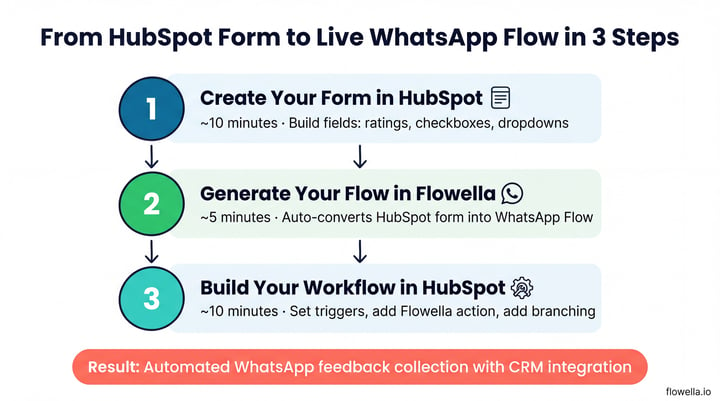
Step 1: Create your form in HubSpot
Time: approximately 10 minutes
Start in HubSpot by creating the form you want your customers to complete via WhatsApp. This is exactly the same process you would follow for a web form, because that is the point. You are using the tools you already know.
This step matters more than people expect, because the HubSpot form is the single source of truth for the whole Flow. Field labels, help text, field types and which fields are required all carry straight through to WhatsApp. Get the form right and the Flow is right.
For our feedback example, create a new HubSpot form with the following fields:
Overall experience (dropdown or number field): A rating scale. You could use a dropdown with options 1 through 10, or a simpler "Poor / Average / Good / Excellent" set. The key is that this maps to a contact property you can branch on in a workflow.
What stood out? (multi-checkbox): Options like "Food quality," "Service," "Atmosphere," "Value for money." This gives you structured insight into what is driving satisfaction (or dissatisfaction).
Any comments? (single-line or multi-line text): An optional free-text field for anything the customer wants to add. Keep it optional; the structured fields above are what power your automation.
Tips for designing your form:
- Keep it short. Three to five fields is the sweet spot for WhatsApp. Customers are completing this on a phone screen; respect their time.
- Use dropdowns and checkboxes wherever possible. These translate cleanly into WhatsApp Flow components and guarantee structured data.
- Write the labels as you want the customer to read them. "How was your visit?" beats "Overall experience" once it is sitting in a chat window.
- Make the rating field required. This is the property your workflow will branch on, so you need it every time.
- Make the comments field optional. You want insight, not friction.
Save and publish your form. You do not need to embed it on a page; Flowella will use it directly.
Step 2: Generate your WhatsApp Flow in Flowella
Time: approximately 5 minutes
Connect your HubSpot account if you have not already. Flowella uses OAuth, so there are no API keys to manage. You review the requested scopes and click Connect app.
Open the Forms section. Log in to Flowella and choose Forms in the left-hand navigation. This lists every HubSpot form Flowella is syncing, along with the WhatsApp Flow status of each one.
Create the Flow. Click the form you just built, then Create WhatsApp Flow. Flowella runs a preflight check covering your HubSpot connection, an active channel, supported field types and active billing, reads the latest form definition, generates the equivalent WhatsApp Flow and uploads it to Meta on your selected channel. Most syncs complete within seconds.
Check the sync result. The form detail page shows the field mapping and the full sync history. If a field type is not supported, adjust it in HubSpot or leave it out, then run the sync again.
One thing worth knowing up front, because it catches people out: the wording lives in HubSpot, not in Flowella. There is no separate Flow copywriting step. If you want to change a label, reorder a question or make a field required, you edit the HubSpot form and re-sync. That is a deliberate design decision, and it means your web form and your WhatsApp Flow can never drift apart.
Flowella handles the Flow JSON, the upload to Meta and the endpoint hosting. None of that needs your attention. Full detail is in the Forms documentation.
Step 3: Build your workflow in HubSpot
Time: approximately 10 minutes
Back in HubSpot, create a new workflow. The configuration depends on your use case, but for our feedback example:
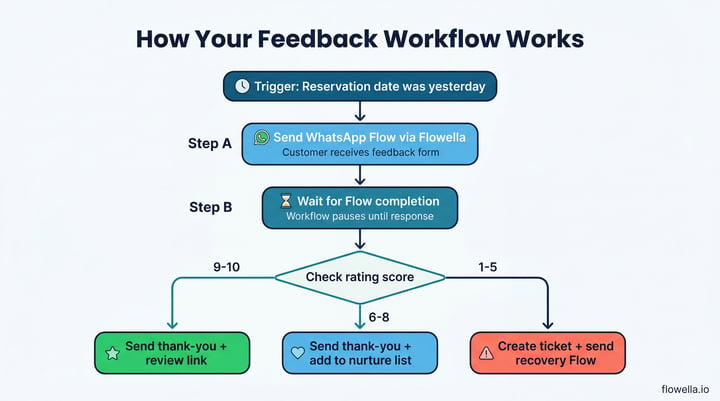
Set the trigger. This could be a date-based trigger (e.g. "reservation date was yesterday"), a list membership trigger, or a manual enrolment for testing. For a restaurant feedback scenario, you would typically use a date property like "reservation end time" with a delay of 2 hours.
Add the Flowella action. Flowella's HubSpot integration adds its actions to the workflow editor alongside HubSpot's own. Add a Send WhatsApp Template action and select the template that carries your Flow. The integration also gives you Send WhatsApp Message for free-text replies inside an open conversation window, and Assign to Customer Agent to hand a conversation to a Breeze agent.
Add a delay until the Flow is completed. Follow the send with a Delay until event occurs step listening for the Flowella Form Completed event, with a timeout so the workflow does not stall forever. This send-and-wait pattern is what makes structured automation work: the workflow pauses until it actually has the data, then branches on it. Flowella also emits Message Read, Message Sent and Text Reply events, the last of which can filter on message content.
Add branching logic. After the delay step, add an if/then branch based on the rating property:
- If score is 9 or 10: Send a thank-you WhatsApp message with a review link (Google, TripAdvisor or your preferred platform)
- If score is 5 or below: Send an empathetic follow-up message, create a HubSpot ticket for manager follow-up, optionally trigger a recovery Flow to collect more detail
- If score is 6 to 8: Send a general thank-you and add the contact to a nurture list
Activate the workflow. Review your settings, ensure the enrolment criteria are correct, and switch it on.
That is it. Your first automated WhatsApp workflow is live.
What happens when a customer completes the Flow
Let us trace the full sequence:
-
The HubSpot workflow fires (based on your trigger condition) and sends the customer a WhatsApp message via Flowella. The message includes a button that opens the feedback Flow.
-
The customer taps the button, completes the short form in WhatsApp (a few taps, under 30 seconds), and submits.
-
Flowella receives the submission, maps the answers back to your HubSpot fields, and logs a timeline activity on the contact record under "Flowella: WhatsApp Forms Integration". The activity shows the form name and links through to the full submission. Behind the scenes this is a CRM timeline event with the identifier
flowella-form-completed. -
That same event is what your Delay until event occurs step has been waiting for. The workflow resumes, evaluates the branch conditions, and executes the appropriate next step: thank-you message, review request, recovery action or nurture enrolment.
-
The contact record now carries a complete, structured record of the interaction, visible on the timeline and usable in reporting and dashboards.
No manual reading of messages. No copying data between systems. No ambiguous free-text parsing. Just clean data driving reliable automation.
Start from a workflow template instead
Building the first one from scratch is worth doing, because it shows you how the pieces fit together. After that, there is a faster route.
The Flowella knowledge base publishes 20 ready-made HubSpot workflow templates, each with the trigger, actions and branching already mapped out. The feedback example we just built has its own template in Hospitality Feedback, and the same library covers lead capture and qualification, NPS and CSAT surveys, appointment reminders, abandoned cart recovery, authentication and OTP, KYC onboarding and more.
Three of the workflows below have templates of their own, so you can start from the documented version rather than a blank canvas.
Three more workflows you can build today
Once you have built your first Flow, the pattern becomes second nature. Here are three more workflows you can set up using exactly the same three-step process.
Booking confirmation and requirements capture
Create a HubSpot form with fields for confirmation status (dropdown: Confirmed / Need to change / Cancel), dietary requirements (multi-checkbox), special occasion (dropdown) and additional notes (optional text). Build a workflow triggered by a date property 24 hours before the booking. Branch on the confirmation status: if confirmed, notify the team with the requirements; if cancellation requested, trigger a rebooking sequence. See the meeting booking template.
Contact data enrichment
Create a simple form with fields you are missing: job title, company name, preferred contact method, communication preferences. Build a workflow that targets contacts where these fields are empty, perhaps filtering by lifecycle stage or last activity date. Send the Flow as a friendly "help us keep your details up to date" message. Each submission fills the gaps in your CRM data, no manual outreach required. See the contact data refresh template.
Subscription or membership renewal
Create a form with fields for renewal decision (dropdown: Yes, renew / No, I would like to cancel / I have questions), preferred payment method (dropdown), and updated contact details (optional fields). Trigger the workflow 30 days before the renewal date. If the customer renews, process the renewal and send confirmation. If they have questions, route to a human agent. If they want to cancel, trigger a retention Flow with a special offer or feedback collection. See the membership renewals template.
Tips for getting the most out of your Flows
Keep Flows short. Three to five fields per Flow is ideal. If you need more information, consider splitting it across two Flows at different points in the journey.
Use the delay-until-event pattern. The ability to send a Flow and then wait for the response before branching is what makes your workflows genuinely responsive rather than just sequential. Always set a timeout so contacts who never reply take a sensible fallback path.
Test with internal numbers first. Before activating a workflow for your full contact list, test it with a small group. Check that the Flow renders correctly on both iOS and Android, that the data maps to the right HubSpot properties, and that the branching logic behaves as expected. Flows now render on WhatsApp Web and Desktop too, so it is worth checking there as well.
Watch your messaging metrics. Flowella's analytics cover delivery rate, read rate and failure rate, along with conversations, opt-outs and usage over time, and per-template performance. If a Flow is not landing, those numbers will usually tell you whether the problem is the send or the message itself.
Respect opt-in rules. WhatsApp has strict rules about business-initiated messaging. Ensure your contacts have opted in, and always provide an easy way out. Flowella tracks per-channel opt-out state and honours it automatically, so a contact who opts out will not be messaged again by that channel. See managing opt-outs and consent.
What comes next
Throughout this series, we have followed the data from Meta's State of Business Messaging 2026 report to its logical conclusion: consumers overwhelmingly prefer messaging, they enjoy structured transactional interactions, they trust brands they can message directly, and they want those interactions to be relevant and personal.[1]
The opportunity is clear. The tools are available. And as we have just demonstrated, you can have your first automated WhatsApp workflow running in under 30 minutes.
The difference between messaging and automation is the difference between creating work and eliminating it. Anywhere you rely on forms, reminders, confirmations, surveys or renewals, Flowella helps you move that workflow into WhatsApp, where it is faster, more personal and far more likely to get a response.
References
- Meta / Kantar: State of Business Messaging 2026 (online study of 11,056 adults across 22 global markets, April-September 2025)
- Flowella: Forms and WhatsApp Flow sync
- Flowella: HubSpot workflow triggers and actions
- Flowella: HubSpot contact activity
Ready to turn conversations into conversions? Start your free Flowella trial today.